WhatsApp privacy settings worth changing today
Most WhatsApp takeovers and scam-group adds are stopped by settings that take seconds to change. Here are the ones that matter, where to find them, and why.
By Shashi Kumar ·
A friend messages: "Hey, I sent a code to your number by mistake, can you forward it?" A number from abroad adds you to a group called something like "Nifty Profit VIP". An unknown caller rings four times during a meeting.
None of this needs a hacker genius. It works because WhatsApp's defaults are built for convenience, and most of us never open the privacy menu after installing the app.
The good news: almost every one of these problems is blocked by a setting that takes seconds to change. We checked each name and menu path below against WhatsApp's own Help Center on 9 November 2026. Menus move around between app versions, so if something looks slightly different on your phone, search for the setting name inside WhatsApp Settings.
How to read the paths: on Android, start from the three-dot menu, then Settings. On iPhone, start from the Settings or You tab at the bottom.
Start with Privacy Checkup
If you only do one thing, do this. Go to Settings > Privacy > Privacy Checkup. It walks you through four sections: who can contact you, your personal info, privacy in your chats, and protection for your account (WhatsApp). The rest of this guide explains what to pick and why.
Lock the account itself
Account takeover is the scam that hurts most, because the attacker then messages your family and customers as you.
Two-step verification
Path: Settings > Account > Two-step verification > turn it on.
WhatsApp is upgrading the old 6-digit PIN to a password, and also asks for an email for recovery and offers to "Trust this device" (WhatsApp). Add the email. With this on, a stolen SMS code alone is not enough to register your number on another phone.
Why it matters in India: the classic takeover is a message from a hacked friend asking you to forward a "wrongly sent" 6-digit code. That code is your account. WhatsApp's own advice is to never share your registration code or password with anyone.
Passkeys
Path: Settings > Account > Passkeys > Create passkey.
A passkey lets you verify with your fingerprint, face or screen lock instead of an SMS code. On Android you need Android 9 or later, a screen lock and a password manager such as Google Password Manager (WhatsApp).
Linked devices
Path: three-dot menu (Android) or Settings (iPhone) > Linked devices.
You can link up to four devices, and anything you do not recognise should be logged out immediately (WhatsApp). In December 2025, MeitY warned about a campaign called GhostPairing, where a "check this photo" link from a trusted contact tricks victims into linking the attacker's device. No password theft, no SIM swap. MeitY's advice: do not enter your number on outside websites, and check linked devices regularly.
Stop strangers reaching you
Who can add me to groups
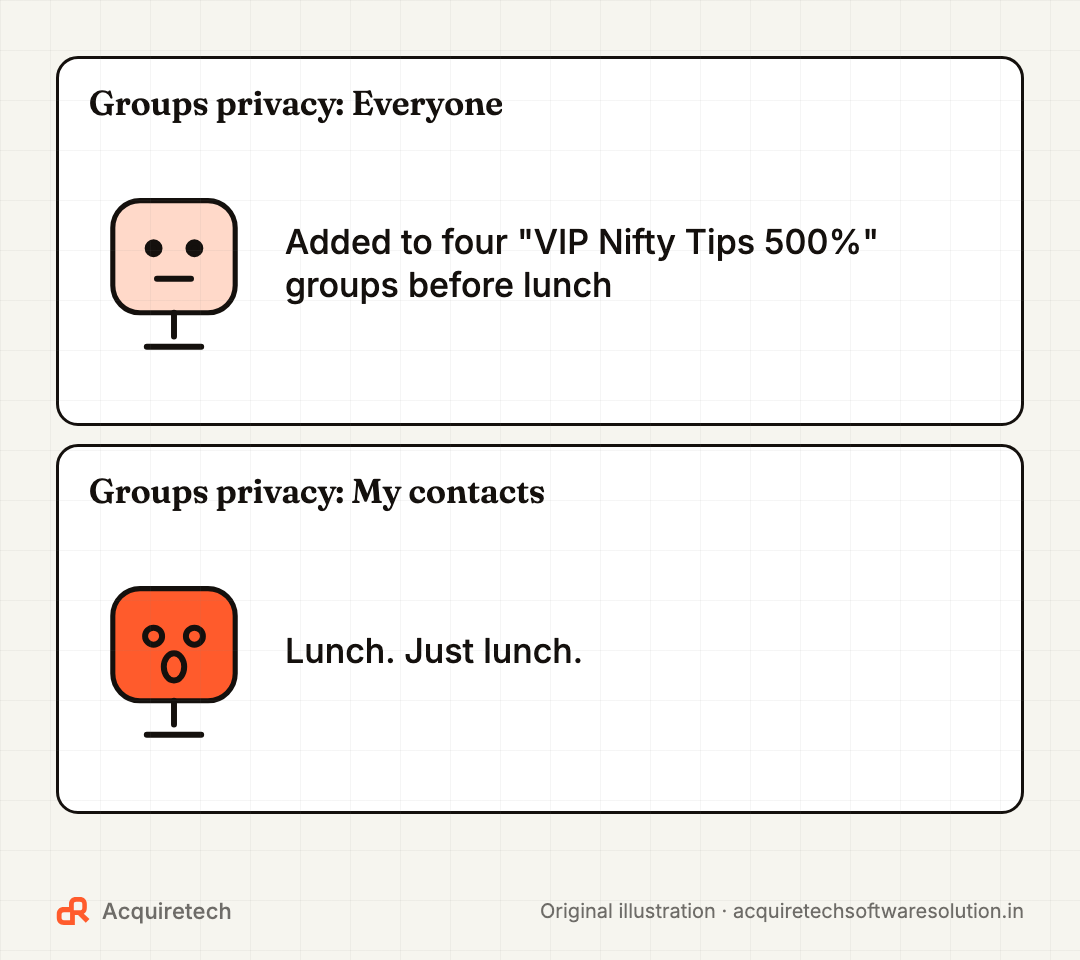
Path: Settings > Privacy > Groups > My contacts (or My contacts except…).
Now strangers cannot drop you into a group; they can only send a private invite, which expires after three days (WhatsApp). This matters because investment-tip groups are a major scam funnel: on 22 October 2026, SEBI issued a caution to investors against stock tips offered through invitation-only WhatsApp groups. WhatsApp also shows a safety overview when someone outside your contacts adds you to a group, with notifications muted until you choose to stay.
Silence unknown callers
Path: Settings > Privacy > Calls > Silence unknown callers.
Calls from numbers not in your contacts stop ringing but still appear in your call list. Useful against spam calls and the opening move of "digital arrest" and fake-officer scams.
Advanced: IP address and message floods
Path: Settings > Privacy > Advanced.
Turn on Protect IP address in calls. Calls are relayed through WhatsApp's servers so the other person cannot see your IP address, which can reveal your rough location. WhatsApp notes call quality may be reduced; calls stay end-to-end encrypted. The same screen also has options to disable link previews and to block high volumes of messages from unknown accounts.
Decide what strangers can see
Path: Settings > Privacy, then each item. Options are Everyone, My contacts, My contacts except…, or Nobody.
| Setting | Our suggestion | Why |
|---|---|---|
| Last seen and online | My contacts or Nobody | Strangers should not know your routine |
| Profile photo | My contacts | Scammers copy photos to impersonate you |
| About | My contacts | Often reveals job, city or school |
| Status | My contacts | Cannot be set to Everyone anyway |
| Read receipts | Your call | Turning off hides blue ticks both ways, but not in groups |
Protect the conversations
- Disappearing messages. Settings > Privacy > Default message timer: 24 hours, 7 days, 90 days or Off. Handy for personal chats; think twice in business chats where you may need a record later.
- Chat lock. Long-press a chat > three-dot menu > Lock chat. From the Locked chats folder, Chat lock settings > Secret code lets you hide locked chats entirely (WhatsApp). Forget the code and you can only clear those chats, so pick one you will remember.
- Restricted chat. In the latest version this replaces Advanced chat privacy. Open a chat > contact or group info > Restricted chat. It stops others saving your media automatically, exporting the chat, using Meta AI in it, or using linked devices for it (WhatsApp). Chats with the old setting need a manual Upgrade. It does not work in chats with businesses that use Meta to store their messages.
- End-to-end encrypted backup. Settings > Chats > Chat backup > End-to-end encrypted backup. Protect it with a passkey, password or 64-digit key. Lose all three and WhatsApp cannot restore it for you (WhatsApp).
What about usernames?
WhatsApp has been rolling out usernames, which let people chat without seeing your phone number. In India, MeitY wrote to WhatsApp on 1 July 2026 asking it to hold the rollout over impersonation and fraud concerns. As of 9 November 2026, we could not confirm a full Indian launch. If you see Settings > Account > Username, reserve your own name so nobody else takes it, and treat any "official" username asking for money or codes with suspicion.
The 5-minute checklist
- Settings > Privacy > Privacy Checkup, and go through all four sections.
- Turn on Two-step verification and add a recovery email.
- Create a passkey if your phone supports it.
- Open Linked devices and log out anything you do not recognise.
- Set Groups to My contacts.
- Turn on Silence unknown callers and Protect IP address in calls.
- Set Profile photo, About and Last seen to My contacts.
- Turn on End-to-end encrypted backup and store the key safely.
If you run your business on WhatsApp
A WhatsApp Business number is a shop counter, not a personal phone, so the stakes are higher. Turn on two-step verification on the business number too, and keep the recovery email on a company account, not an ex-employee's Gmail. Review linked devices every month, because staff laptops come and go. Never let anyone outside the business "help" by asking for the registration code. If you are automating replies or follow-ups, use the official WhatsApp Business Platform rather than unofficial tools that ask you to scan a QR code; we explain how in our guide to WhatsApp lead follow-up automation.
Frequently asked questions
What is the most important WhatsApp setting to change first?
Two-step verification. It stops someone who tricks you into sharing your 6-digit registration code from taking over your account, and WhatsApp now uses a password plus recovery email for it.
How do I stop people adding me to WhatsApp groups?
Go to Settings > Privacy > Groups and choose My contacts or My contacts except. Strangers can then only send you a private invite, which you can ignore.
How do I check if someone else is using my WhatsApp?
Open Linked devices from the three-dot menu on Android or from Settings on iPhone. Log out of any device you do not recognise, then turn on two-step verification.
Does silencing unknown callers block them?
No. Calls from unknown numbers stop ringing but still appear in your call list and notifications, so you can call back if it was genuine.
What replaced Advanced chat privacy?
On the latest version of WhatsApp, Restricted chat replaces it. It adds a block on linked devices for that chat, on top of the earlier limits on exporting chats and auto-saving media. Existing chats need a manual upgrade.
The bottom line
Privacy on WhatsApp is not one big switch. It is eight small ones, and together they shut the doors scammers rely on most: stolen codes, rogue linked devices, cold group adds and nuisance calls. Do the checklist today, then do it for your parents' phones this weekend.
For the scams these settings help stop, read our guides to the digital arrest scam and deepfake family-emergency calls. And if your business runs on WhatsApp and you want it secure and automated properly, talk to us.
Sources and further reading
- About privacy checkup · WhatsApp Help Center · 2026-11-09
- How to manage two-step verification settings · WhatsApp Help Center · 2026-11-09
- Create a passkey · WhatsApp Help Center · 2026-11-09
- About linked devices · WhatsApp Help Center · 2026-11-09
- How to change your privacy settings · WhatsApp Help Center · 2026-11-09
- How to change group privacy settings · WhatsApp Help Center · 2026-11-09
- About restricted chat · WhatsApp Help Center · 2026-11-09
- Turn chat lock on or off · WhatsApp Help Center · 2026-11-09
- About end-to-end encrypted backup · WhatsApp Help Center · 2026-11-09
- MeitY Issues Advisory on GhostPairing Cyber Campaign Targeting WhatsApp Accounts · News On AIR · 2025-12-21
- Caution to Investors against Stock Tips offered through Invitation-only WhatsApp Groups · SEBI · 2026-10-22
- WhatsApp adds new features to protect against scams · TechCrunch · 2025-08-05
- India gives WhatsApp three days to defend username rollout amid security fears · The Register · 2026-07-02
Contact Acquiretech Software Solution: info@acquiretechsoftwaresolution.in · WhatsApp +91 80786 33912 · Send an enquiry